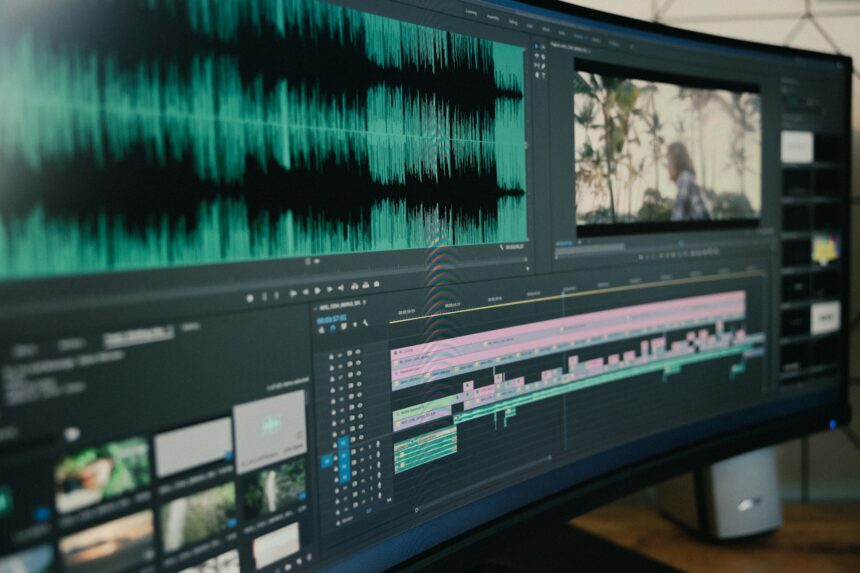
Making a video used to mean filming, editing, and hours of fiddly work. Now you can type a script or even a single sentence and have AI produce a finished video complete with visuals, voiceover, and a presenter who never existed. For students making a project, teachers building a lesson, or anyone creating content, this has turned video from a daunting task into something you can do in minutes.
This guide walks through how to use AI to create videos in practical terms: the main types of AI video (from text, from scripts, and talking avatars), the best free and low-cost tools for each, a step-by-step workflow, and the honest limitations so you know what to expect. It also answers the common questions people ask whether ChatGPT can make videos, whether you can make a video of yourself, and which tool is actually best. No video experience needed; the goal is getting you from idea to finished clip without the usual complexity.
The Main Ways AI Creates Video
“AI video” covers a few different things, and knowing which you want saves a lot of confusion.
Video from a script or presentation (the most practical). Tools take a script, article, or slides and assemble a video with stock footage, text, music, and an AI voiceover. This is what most people need for explainers, social content, and school projects.
Talking avatars (AI presenters). You type text and an AI avatar a realistic digital person speaks it to camera. Useful for training videos, announcements, and content where you want a presenter without filming yourself.
Generative video from text (the newest, most limited). You describe a scene in words and AI generates the footage from scratch. This is improving fast but still produces short clips, can look odd, and the best versions are usually paid.
Most everyday video needs fall into the first two categories. The third is impressive but not yet reliable for a full, polished video.
Can ChatGPT Make Videos?
A quick answer to a common question: not directly, but it helps. ChatGPT itself generates text and images, not full videos so it won’t produce a finished YouTube video on its own. What it’s excellent at is the script. Use ChatGPT to write your video script, outline, or scene descriptions, then feed that into a dedicated AI video tool that turns it into the actual video. Think of ChatGPT as the writer and a video tool as the producer. That pairing is genuinely useful: a strong script is half of a good video, and ChatGPT drafts it fast.
The Best AI Video Tools
Here’s an honest look at the main options, including free ones.
| Tool | Best for | Free option? |
|---|---|---|
| Canva | Script/slide-based videos, students | Yes (generous) |
| Synthesia | Talking avatar videos | Limited (mainly paid) |
| HeyGen | Talking avatars, video of yourself | Limited free |
| Pictory / InVideo | Text/article to video | Limited free |
| CapCut | Editing + AI features | Yes |
| Runway / Sora-style tools | Generative video from text | Limited free / paid |
Canva is the most accessible for most people, especially students. Its free plan includes video creation with templates, stock media, text, and some AI features, and it’s genuinely easy for beginners. Great for presentations, explainers, and social clips.
Synthesia and HeyGen specialize in talking-avatar videos type a script and an AI presenter delivers it. They’re polished but largely paid, with limited free trials; HeyGen is often used for making a talking video of yourself (more on that below).
Pictory and InVideo turn articles or scripts into videos with stock footage and voiceover, offering limited free tiers.
CapCut is a free editor with AI features (auto-captions, voiceover, effects), useful if you want more editing control.
Runway and Sora-style generative tools create video footage from text prompts the newest category, impressive but limited to short clips and often paid for the best quality.
Pricing and free limits for all of these change frequently, so check each tool’s current plans before committing. Free tiers typically watermark videos or cap length and exports.
How to Make a Video of Yourself With AI
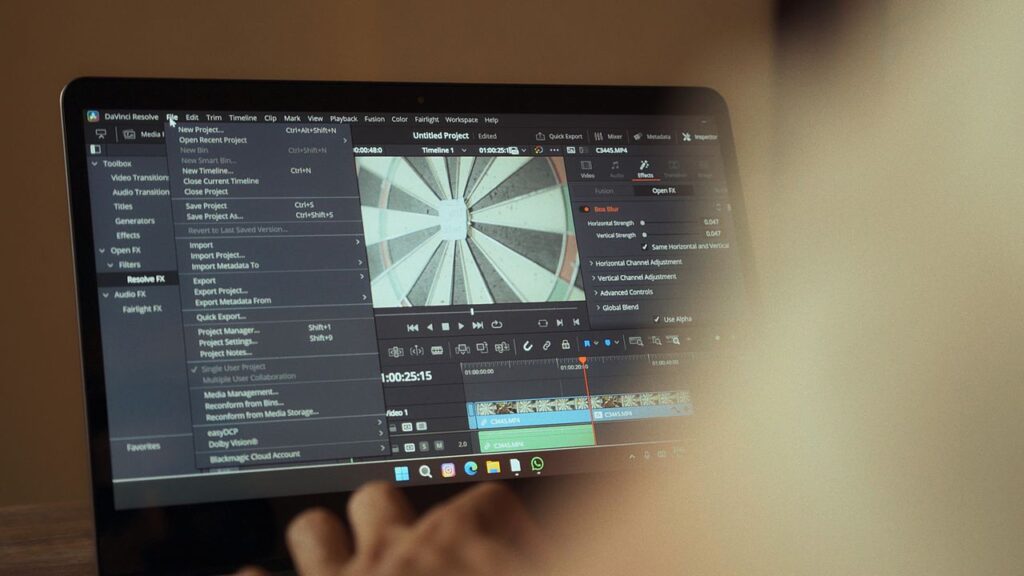
A popular use is creating a video that looks like you presenting, without filming each time. Tools like HeyGen and Synthesia let you create a digital avatar sometimes from a short recording of yourself that can then speak any script you type, often in multiple languages. You record once (or use a provided avatar), type your text, and the AI generates you “saying” it.
This is powerful for repeatable content, but two cautions matter. First, realistic avatars of real people (including yourself) are usually paid features with verification steps. Second, and more importantly, only ever create avatar videos of yourself or with explicit permission making videos of other people without consent is unethical and can be illegal, the deepfake problem in miniature. Use this responsibly.
Step by Step: Making an AI Video From Text or a Script
Here’s a practical workflow that works across most tools.
- Write your script. Use ChatGPT or write it yourself. Keep it clear and concise videos reward brevity. A good prompt: “Write a 60-second video script explaining [topic] for [audience], in a friendly, clear tone.”
- Choose your tool based on the type of video (Canva for slide/script videos, HeyGen for an avatar, Pictory for article-to-video).
- Input your script or content. Paste your script, upload slides, or provide the article.
- Let the AI build the first draft, which assembles visuals, text, and often an AI voiceover automatically.
- Customize. Swap visuals, adjust text, change the voice, add music, fix timing. This is where you make it yours.
- Review carefully check the voiceover pronunciation, that visuals match the message, and that nothing looks off.
- Export, noting any free-tier watermarks or length limits.
The whole process can take minutes for a simple video, versus hours the traditional way.
Writing Prompts and Scripts That Work
Good AI video starts with good input. A few tips:
- Keep scripts tight. Spoken content should be shorter than written aim for conversational, punchy sentences.
- Structure clearly. Hook, main points, conclusion. Ask ChatGPT to structure it this way.
- Describe the visuals you want if the tool supports it: “show a graph here,” “footage of a city street.”
- Match tone to audience a student project, a professional explainer, and a fun social clip need different voices.
- Specify length up front so the pacing works.
For generative-video tools (text to footage), the same specificity applies as with AI images: describe the scene, style, and mood clearly, and expect to generate several times to get a usable clip.
The Honest Limitations
AI video is genuinely useful but far from flawless. Know the limits:
- Generative video is still rough. Text-to-video tools produce short, sometimes strange clips (odd movement, distorted details). They’re not yet reliable for a full polished video.
- AI voices and avatars can sound/look slightly off. Pronunciation errors and a faintly artificial feel are common; review carefully.
- Free tiers are limited. Expect watermarks, short length caps, limited exports, and fewer features on free plans.
- It still needs your judgment. AI assembles a draft; you make it coherent, accurate, and on-message. Dumping a script in and exporting without review usually shows.
- Accuracy matters. If your video states facts, verify them AI scripts and summaries can be wrong.
None of this makes AI video not worth using; it means treating the AI output as a strong first draft you refine, not a finished product.
Honesty, Rights, and Responsible Use
A few responsibility points worth taking seriously. Be transparent when content is AI-generated where it matters, especially if it could mislead. Never create avatar or face videos of real people without their consent. Check each tool’s terms for commercial use rights, and be mindful of music and stock footage licensing. For students, check whether AI-made video is allowed for your assignment, and disclose it if required. These aren’t just legal niceties as AI video becomes more realistic, using it honestly is what keeps it a useful creative tool rather than a source of harm.
Which Tool Is Best?
There’s no single winner it depends on your goal:
- Beginners and students, free: Canva, for ease and a genuine free tier.
- Talking-presenter videos: Synthesia or HeyGen (mostly paid).
- A video of yourself: HeyGen.
- Article or script to video: Pictory or InVideo.
- Editing with AI features, free: CapCut.
- Experimental generative footage: Runway or Sora-style tools.
Pair any of these with ChatGPT for scripting, and you have a full pipeline. Most people are well served by Canva plus ChatGPT to start.
The Takeaway
Creating videos with AI comes down to choosing the right type for your goal script-based videos (Canva), talking avatars (HeyGen, Synthesia), or generative footage (Runway and similar) and pairing a good script, which ChatGPT can write, with a tool that turns it into video. The workflow is simple: script, choose a tool, input your content, let AI build a draft, then customize and review before exporting.
Expect real limits, especially from free tiers and from still-rough generative video, and treat the AI output as a first draft you refine rather than a finished piece. Use it honestly particularly with avatars and anything involving real people. Get those basics right and you can turn an idea into a watchable video in minutes, a skill that used to require real equipment and hours of editing, now available to anyone willing to guide the AI thoughtfully.
Suggested Internal Links:
- Article: How to Use AI to Create Images “creating images with AI”
- Article: Best Free AI Tools for Everyday Use “more free AI tools worth trying”
- Article: How to Write Better Prompts for AI “writing prompts and scripts that work”
- Article: How to Use ChatGPT for Beginners “how to use ChatGPT effectively”
External Sources:
- Canva — video and Magic features (canva.com)
- Synthesia and HeyGen — AI avatar video features and pricing
- Pictory, InVideo, CapCut — AI video feature pages
- Runway and OpenAI (Sora) — generative video documentation
Read More On AI Global Class